Tuesday, September 20, 2011

Can you use technology without risking your privacy?

Posted by Christina DesMarais on September 19, 2011 techlicious.com


Who needs a paper map when smartphones today can find your exact location and give you turn-by turn-directions to your destination? And what’s the harm in shooting a quick photo that can be shared in seconds with friends, family and followers online? These modern marvels make life easier and more gratifying in many ways but their benefits don’t come without a trade-off. Never before has your privacy been more at risk.
Location Tracking
“I think perhaps the hottest issue right now is location. Location, location, location,” says Kevin Bankston, senior staff attorney at the Electronic Frontier Foundation (EFF) in San Francisco.
Indeed, both Microsoft and Google were recently under fire for collecting the locations of millions of laptops, cell phones and other Wi-Fi-enabled devices around the world. The unique identifiers for those devices were then made public, meaning that if a person knew someone’s Media Access Control (MAC) address, he could infer where that person spent time with her phone in tow.
A MAC address is a device’s unique hardware number or physical address, and it allows a cellular carrier to find a phone and link it to its network.
While both Microsoft and Google have since made changes to their databases to assuage privacy concerns, the fact remains that our mobile phones can double as tracking devices.
“[Mobile phones] can reveal information about your location not only to your cell phone carrier but also to the cell phone manufacturer, the developer of the operating system of your phone or location-based service applications on your phone,” Bankston says, adding that some apps have no use for your location but simply want access to it for marketing purposes.
To keep those apps from tracking you, often it’s just a matter of making a few adjustments to your phone settings. On the iPhone, for example, you can turn off location features by going to Settings, General, Location Services. There you can enable or disable location functions for each app on your phone. Android handsets have a similar option in Settings, Location and Security.
But aside from shutting off your phone entirely, your cell phone carrier will always be able to triangulate tower signals to determine your location if law enforcement or some other entity should ask for it.
Geotags in Photos
“Anytime you use an electronic device, depending on what the device is, you’re leaving a data trail, whether it’s GPS meta data in a photograph you take or [the] cookies you pick up when you’re online,” says Rainey Reitman, activism director with the EFF.
She’s right. As we have pointed out, every time you take a photo with your cell phone, there’s a good chance your location is being stored along with the photo. Cell phones with GPS often default to storing this information when GPS is turned on. And some point-and-shoot and dSLR cameras also have GPS built into them.
There are a couple of ways to remove the location information from your photos, which is also called Exchangeable Image File Format (EXIF) data. First, you can download a simple program that strips out the EXIF data. For Windows PCs, try Easy Exif Delete (free on cnet.com) or iPhoto Exif Cleaner for Mac (free on cnet.com) for Macs. These programs will indiscriminately remove all of the EXIF data.
Cookies That Can’t Be Deleted
And the cookies Reitman mentioned are the reason the ads you see online seem to know that you’re old enough to possibly want to buy wrinkle cream, or that you’re in the market for a new car.
In studying the companies and technology behind this targeted advertising, The Wall Street Journal found that the nation's 50 top Web sites on average installed 64 pieces of tracking technology onto the computers of visitors.
“There are third-party tracking cookies on almost every popular commercial site so they’re virtually impossible to avoid,” says Paul Stephens, director of policy and advocacy for the Privacy Rights Clearinghouse in San Diego, Calif.
While tech-savvy Web surfers used to simply delete these tracking cookies from their machines, the WSJ found that “…new tools…scan in real time what people are doing on a Web page, then instantly assess location, income, shopping interests and even medical conditions. Some tools surreptitiously re-spawn themselves even after users try to delete them.”
Understandably, some people think this kind of activity is wrong. Wired recently reported that Web site analytics firm KISSmetrics and more than 20 of its customers, including Spotify, AOL’s About.me, Etsy, Spokeo and the news site Gigaom.com were recently sued on the grounds that KISSmetrics’ tracking technology violated federal and state privacy laws.
All web browsers provide ways to delete cookies from your computer. The Web site ghacks.net gives a good tutorial on doing it in each major browser. You can also visit the Network Advertising Initiative to opt out of the behavioral advertising conducted by its member companies.
Data Mining
It might distress you to know how many Web sites display things like your address, phone number and other personal information.
“The problem is…if a consumer has a severe need to have privacy—if they’re a public defender or a law enforcement officer or the victim of stalking—it is practically impossible to truly keep your privacy online, especially your home address and such, because these information broker web sites don’t have to remove your information,” says Reitman, who adds that some sites such as Spokeo, which at one time posted maps that pointed to people’s houses, now offer an opt-out option.
The Privacy Rights Clearinghouse provides an excellent listing of the scads of online information brokers that may be collecting information about you, as well as links to opt-out pages at those sites if they are available. Unlistmy.info also provides a list of the most popular sites that might be storing data about you, as well as advice for getting off those lists, if an option exists.
To see some of the many sites collecting information about yourself, try searching for your name atPipl.com. I did and found all sorts of sites gathering my data. Pipl also offered maps to my house as well as a link to my wish list on Amazon, which also lists my birthday.
Online Profiles
While many companies such as Amazon create public profiles for their customers, I find it unnerving that anyone can go snooping around my Amazon profile to find out what kinds of things I’d like to buy. I’ve been using Amazon since the company’s beginning and now can’t remember setting up a profile for myself. The point is that it’s important to check the privacy settings related to any kind of profile a site you use often may be keeping on you.
As another example, Health Month is an online game I occasionally like to play which involves setting health rules—such as “Eat fresh fruit every day”—and you win or lose points for following your own rules. After searching for “Christina DesMarais” and “profile” I realized my Health Month profile—including all my healthy and unhealthy habits—was there for the world to see. I then spent several minutes trying without luck to find some privacy settings at the site that I could adjust. As my only recourse I was forced to change my name, birthday and email address on the site so as to not contribute to the data online brokers are able to glean about me.
I emailed Health Month and received a response within minutes. Buster Benson, who created Health Month (and is a person who’s very sharing with his personal data), said the way I handled it—by changing details on my profile—was the best method for staying hidden, but that he would be letting users adjust privacy settings within the next few weeks.
This goes to show that it often pays to raise your privacy concerns with a company.
Facial Recognition
While Facebook is one of the companies the EFF says has fought for user privacy in Congress, it also makes use of facial recognition software which is actually the opposite of private. Google and Apple also are using it in their respective Picasa and iPhoto products.
What makes facial recognition disturbing is how it could be used in the future as technology progresses. Already in Japan there are billboards that can recognize your gender, approximate age and ethnicity so as to better target ads toward you. And you may have heard that after the recent riots in London police were using facial recognition to identify looters.
While identifying looters sounds like a good idea, think about what it would be like if everywhere you went cameras could determine who you were. Personally, I find the idea appalling. Remember the movie Minority Report, anyone?
And you might have reason to worry about those seemingly harmless Facebook photos that you’re tagged in.
Researchers from Carnegie Mellon University have found that it’s possible to use facial recognition technology to match the photos and real names from publicly available profiles (such as Facebook) to profiles where the user used a pseudonym and wouldn’t want his real name used, such as Match.com.
In a published report the authors wrote, “Hence, face recognition creates the potential for your face in the street (or online) to be linked to your online identity(ies), as well as to the sensitive inferences that can be made about you after blending together offline and online data.”
The LA Times recently posted a guide for disabling Facebook’s facial recognition.
Devices With MemoryIf you’ve ever used a digital copy machine there’s a good chance the data you scanned is still saved to the copier’s memory. In fact, this poses such a privacy concern that several states are working on passing laws to require businesses to erase or encrypt stored data from digital copiers before recycling or disposing of them.
Any device with memory, including your PC or phone, should be cleared out before you part with it.
While some people think that deleting files and folders is sufficient before selling or disposing of a computer, they’re wrong. Deleted files can be undeleted. Even reformatting your hard drive can be undone. The most secure way to remove data from your computer is to use one of the wiping or erasing utilities we recommend when prepping your computer for disposal.
It’s also important to erase data from your phone before getting rid of it. With iOS, it’s a just a matter of hitting Settings, General, Reset, Erase All Content and Settings.  For Android, you’ll want to format your microSD card, which you can do through SD Card and Phone Storage, under Settings. Then do a Factory Data Rest, under the Privacy menu in Settings.
The Bottom Line
There’s no doubt that as technology evolves privacy concerns grow.
As a final example, let me share another tidbit. The Air Force is working on tiny spying aircraft that might be as small as a dragonfly. While they’re not sure how the little bugs might be used, the point is that technology is capable of finding more information about people than ever before thought possible.

Monday, September 19, 2011

How to fix a slow Computer


How to Improve PC Startup Time

posted by Josh Kirschner on April 20, 2010
in Computers and SoftwareSafety & SupportTips & How-Tos :: 6 comments
Updated April 21, 2010 to include new steps for Windows 7
When you hit the “on” button of your PC, your computer must load a number of different programs to launch the operating system and other supporting applications. Each of these takes time—even a brand new PC will often take a minute or more to get up and running. While there are many programs your PC needs to run properly, most manufacturers bundle a number of “trial” programs or proprietary applications that are of little value.
Over time, most PC owners will install yet even more applications – instant messaging programs, Skype, AOL, Picture Editing Software, etc. – that just add to the overhead and cause startup times to get longer and longer.  Follow these steps and you may see a significant improvement in your PC's startup performance:

Step 1: Remove Startup Programs

Believe it or not, there are very few programs required to be loaded at startup. Most can (and should) be started manually from the Start menu when, and if, you actually need them. So, often a simple cleaning will get your computer running like a champ. Follow these steps to get things back in order:
  1. Make sure you have a program that protects against viruses, spyware and adware. Norton and Kapersky both have highly rated products that protect against all three threats. If you have virus protection installed, it is unlikely that a virus or other evil program is causing the lethargic behavior. If you don't have protection, check out our Computer Security Buyer's Guide. Be sure to turn on “auto updating,”, so you always have the latest virus protection files and schedule the program to do a full scan once a week. And be wary of ads on the Internet for “free” virus scans or protection programs – many of these are actually scams to get you to download malicious software or purchase unnecessary programs.
  2. Hit your Start button on your screen and go to the Programs menu. You should see a folder called Startup. Inside this folder are shortcuts to programs that will be loaded on, you guessed it, startup. If you don’t need these programs to be loaded automatically, delete the shortcut by right-clicking on the icon and hitting Delete. Don’t worry, you’re not deleting the actual program, just a shortcut that tells the computer to load it. When you need to run this program, you can just browse to it from the Start menu and load it up.
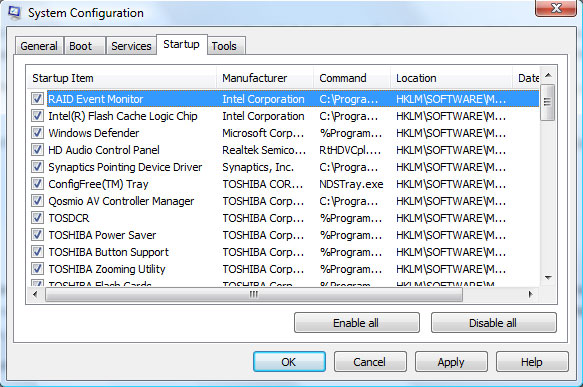
  3. Click the Start button and hit “Run”. In the window that comes up, type “msconfig” into the Open field and click “Ok”. This will bring up the System Configuration application. Click on the tab that says “Startup” and it will bring up a list of every application that is being loaded on top of Windows. In Windows 7, you can also get to the System Configuration application through the Control Panel (Start>Control Panel>System and Security>Administrative Tools>System Configuration).
     
 
Now this next part starts getting a little technical, but stick with it, because this is where you can significantly improve your computer’s startup speed.
Look through the list of Startup items and ask yourself the question, “Do I need this program to start every time I run Windows? Or can I just start it up when I need to use it?” Programs such as RealPlayer, Adobe Acrobat, Apple Quicktime will often be in this list even though there is really no need to load them at startup. To remove a program from the startup list, simply uncheck the box next to it. Again, this does not delete the program. It simply stops it from loading automatically. Try to remove everything you don’t need and you may see a big difference in your PC’s performance.
If you’re not sure what a program does (and this is a common issue, even for tech experts), there’s a great website www.sysinfo.org/startuplist.php that lets you to look up the name of startup programs and tells you whether they’re needed, not needed, optional, or (worse!) a potential virus threat. Pay close attention to the name of the Startup Item and the Command name (usually an “.exe” file); much of the time, virus programs and valid programs have very similar names. If you still can’t identify the program or you’re not sure if you need it, just leave it alone.
When you are done reviewing the Startup items, click "Ok". You will get a message telling you to restart your computer, which you can do now or wait until later. After you restart, Windows will give you a message letting you know that you are using “Selective Startup”. Click “Ok” and you’re all set. If you have any problems because you unchecked something by mistake, just pull up msconfig again and recheck the item.
Helpful hint: When you are installing a new application on your PC, pay attention to any “extras” that are included in the installation process. Often this will be indicated by a checkbox on one of the installation screens that will say something like “Install Yahoo! Toolbar” or “Install iTunes.” If you don’t need or want them, your best bet is not to install them.

Step 2: Free Up Space on your Hard Disk

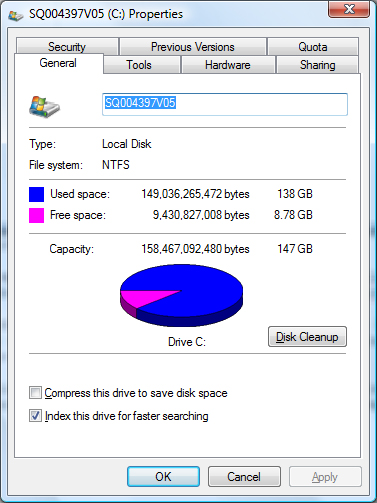
Your computer uses space on your hard disk to store temporary program files. If your hard drive is too full, your computer won’t have room to store all these files—and this can significantly impact performance. Check to make sure you have at least 10% of your hard disk free. This is easy to do by right clicking on your "C:" drive in My Computer and selecting "Properties."
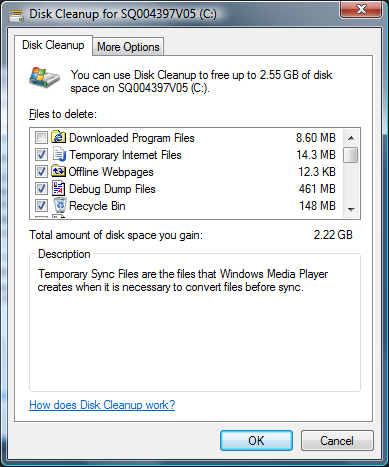
If the “Free Space” is less than 10% of “Capacity,” it is important you make more room. A simple way to do this is with Windows Disk Cleanup. You can get there through Start>Program>Accessories>System Tools>Disk Cleanup. Or, in Windows 7, Start>Control Panel>System and Security>Administrative Tools>Free up disk space.
  1. On the first "Disk Cleanup" tab, you will be given the option to delete various temporary files and empty your Recycle Bin, with a measure of how much disk space you will gain. Generally speaking, there should be no harm in deleting these files.
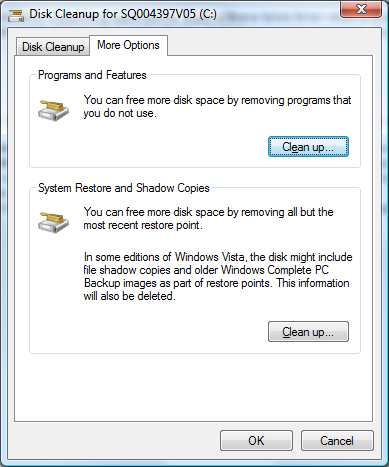
  2. Now go to the "More Options" tab (Depending on your administrative settings in Windows 7, this tab may not appear initially. If it doesn't, click the button that says "Clean up system files", choose your drive and now the tab should appear). Here you will have the option to clean up "Programs and Features." This will allow you to uninstall any programs you never use, especially games (which can take up considerable space). Click the "Clean up" button. Then highlight the program(s) you want to uninstall and click the "Uninstall" button.
  3. Also on the "More Options" tab there is an option to clean up "System Restore and Shadow Copies." These backup files allow you to restore your computer to an earlier time, in case something goes wrong, or recover files and folders that you may have accidentally deleted. Windows will store many versions of the backup files and, over time, they can take up a huge amount of space on your hard drive. Clicking "Clean up" will delete all but the most recent version.

If You're Still Having Problems
Call GeekToGoUSA.com at 1-888-320-5012

Friday, September 16, 2011

You can now edit videos directly on YouTube


YouTube
According to the official YouTube blog, the new tools can be used on newly uploaded as well as older videos (as long as they do not have over 1,000 views or any third-party content). The videos' URLs and ID numbers will remain the same unless you choose to save the edited footage in brand new clips.
You can see a little preview of just what you'll be able to do with all the editing tools in the clip below. I recommend taking a peek just for the sake of seeing how the Instagram-style filter effects work — because let's face it: We're bound to start seeing those a lot more frequently.
Note that the editing features are being rolled out gradually. So don't worry if you're not seeing the magical "Edit Video" button just yet — just give it a bit of time.

Thursday, September 15, 2011

Business Owners: Twitter Is Not Your Therapist


As I spend more time on social media, I'm amazed at the sheer number of entrepreneurs who treat Twitter like a therapist's office.
I totally understand that many of the folks online are solopreneurs and small-business owners, and that for them a social media site like Twitter serves as a virtual water cooler. But if you are one of these people, I ask you to rethink your strategy.
If you have a personal profile that has nothing to do with business, then go ahead, do what you want. (And by "do what you want," I mean: Be very careful, because just like a court of law, anything you say can and will be used against you in the future.)  If you are using your accounts for business in any way, however, then you really need to think about your objectives.
Let's take Twitter, for example. People follow you so that they can read your tweets.  If you are cultivating your business online, then ostensibly your followers want to hear about business.  That's not to say that you can't engage in dialogue, build rapport, and put out some other content that you think your followers would be informed or entertained by, but you need to be careful.  More importantly, you need to think carefully about your intent.
I may have a random thought like, "I wish the bejeweled fashion trend would die" (which I do think, by the way), but is this something that I should share on Twitter?  Probably not, because it's just my stream of consciousness, and the people who follow me probably don't give a rat's ass about the bejeweled fashion trend (or what I had for dinner, or whatever).
From time to time, it may produce a bonding effect to share some personal information with your followers, but put yourself in your readers' shoes: Is that what you would want to be reading from you?
Here are a few other therapist-office violations that business owners are likely to commit on Twitter:
Twitter worship: I recently saw a tweet that said, "Sending my dad lots of healing energy today so his fever comes down quickly."  I am not sure if the sender thinks that God or the head of the Mayo Clinic is following her on Twitter, but I have no other explanations for her tweet.
Is the point to solicit empathy?  Why would your Twitter followers need this information?  I can understand the temptation to upload your brain to Twitter, but that doesn't mean it's effective.  Call your dad directly, for goodness sake!
Spam is as spam does: There are a number of people who get irate at spammers on Twitter.  They vent their frustrations at these individuals for sending them auto DM's (Twitter jargon for "automated direct messages"), general spam tweets that mention them, and other issues.
The problem is that by calling out spammers in your stream, you are basically spamming your own followers. Don't bring attention to these idiots by sharing their behavior with your followers -- and more importantly, don't clog your followers' Twitter streams with the same nonsense that makes you so upset.
Over-sharing your personal views: According to a University of Colorado at Denver study, politics and religion were the two status-update topics most likely to get you "unfriended" in social media.  So, if your business is to be a political or religious pundit, then sure, make your views known. If not, save them for more private venues.
I am all for taking a stand and being contrarian, but do it in a relevant arena, or you may find your social media strategy unraveling. Business is business - keep it that way.
Work venting: "OK," you say, "I will keep my tweets all business, all of the time." Yet you still need to be careful.
Tweets that vent about difficult or stupid clients, project-related problems, or other business issues don't show you and your business in a good light. They may also give your clients cause for concern that your M.O. is to share anytime something goes wrong. Does anybody want to hire someone that airs their dirty business laundry online?
I'm with the cool kids: Twitter and social platforms are all about engaging with followers. And sometimes there are great reasons to keep your back-and-forth conversations going inside your stream rather than taking them private. For example, I had a dialogue with @ConversationAge recently about sites that steal content.  This was a relevant back and forth discussion to keep public, because it is a topic of interest to both of our followers. 
On the other hand, sometimes this back-and-forth turns into silly banter that makes it look like you just want others to know that you are friends with some person or group.  It's OK to start conversations online, but if it's going to get lengthy or personal, move it to a private forum (such as Twitter DMs).  We already know that you're popular; you don't need to prove it ad nauseum.

Wednesday, September 14, 2011

Can Windows 8 save the PC from extinction?


@CNNMoneyTech September 14, 2011: 3:13 PM ET

Can Windows 8 save the PC from extinction?

ANAHEIM, Calif. (CNNMoney) -- There's no question that Microsoft got the message: Mobile devices and tablets are the future of computing. Here's the next quandary: Is Windows 8 enough to salvage the PC, or is it too late?
Love it or hate it, Microsoft made a bold bet with its radically redesigned, re-engineered Windows 8. It rejected Apple (AAPL, Fortune 500) chairman Steve Jobs' declaration in March that the post-PC era has begun.
Rather than simply putting its Windows Phone software on a tablet to try to compete with the iPad, a battle all other rivals are currently losing, Microsoft (MSFT, Fortune 500) gambled that people want more out of their tablet experience. It believes that buyers -- including home users, not just office workers -- are still clamoring for storage, processing power, and robust content creation tools.
Yet consumers have been voting "no" with their pocketbooks. PC sales growth has tumbled in the United States and have even come to a screeching halt globally. The unstable economy has contributed significantly to that, but the iPad has also chomped away at the PC. When Hewlett-Packard (HPQ, Fortune 500) decided to exit the PC business, CEO Leo Apotheker cited as a prime reason that "the tablet effect is real."
With Windows 8, Microsoft is in a sense betting the house on form factor. The company believes that when people buy an iPad, what they really want is a PC on the go that's just not available to them yet.
"It looks like Microsoft is finally on the right track, writing the evolution of the Windows PC on its own terms," said Al Hilwa, analyst with IDC.

Click for a look inside Windows 8

Time is not on Microsoft's side. It's still very early on in the Windows 8 development cycle, with the developer preview just launched on Tuesday. Microsoft wouldn't say when Windows 8 will be ready for a test release, never mind general availability. Meanwhile, the iPad is already five months into its second-generation device.
"I think it's too early to call Windows 8 the revival of the moribund PC market," said Carl Howe, analyst with Yankee Group. "It's really easy to demo stuff that is completely unusable in real life -- see Windows Vista -- and sells poorly when the final product packaging is done -- see Windows Vista."
Laptop and desktop PCs will never die off entirely; the keyboard and big-screen form factor is ideal for desk-bound tasks.
But will users always need software like Windows and Microsoft Word to power those computers? Google's current batch of cloud-powered Chromebooks are more like proof-of-concept prototypes than actually useful devices, but they point the way toward a very different future of what "the PC" could look like.
Microsoft needs to steer the world in another direction.
It will have from now until Windows 8 hits store shelves to work on its sales pitch. Consumers have become accustomed to simplicity when using tablets. Microsoft may need to convince them that they're missing out on a fuller experience.
"Windows 8 certainly has potential to put Microsoft back in the consumer market," said Michael Silver, analyst at Gartner. "But the Microsoft offering will do more to converge PCs and tablets, which also may mean it will be more confusing for consumers to buy a Microsoft tablet."
Though a Windows 8 tablet would come with a distinct app advantage over the iPad -- there's more software written for Windows than the iPad -- even native software has taken a backseat as the Web continues to solidify itself as the most-used application on any connected device.
"I don't think Windows 8 can save the PC market," said Zeus Kerravala, analyst at Yankee Group. "The simplicity and portability of a tablet makes them ideal for what most people want to do with computers."
Still, others say that the PC, though fading, is far from dead. IPads are great complimentary devices, but the PC is the only serious content creation device on the market. With Windows 8 could be the missing bridge between the desktop and mobile worlds.
"Microsoft has in effect thrown down the gauntlet to Apple and Google (GOOG, Fortune 500)," said Laura DiDio, principal at tech consultancy ITIC. "Microsoft said, 'Not only are we still relevant but we have every intention of giving you a run for your money and users' hearts and minds." To top of page

Tuesday, September 13, 2011

Facebook Updates Help Users Share Better With Others

New Page 1
On a recent vacation to Aruba, I had to smile when I saw that each of the computers in the hotel business center had Facebook.com saved in their Internet bookmarks. Even people in a tropical paradise are anxious to check Facebook.
For all of Facebook's popularity, many of its users are still nervous about how to maintain their privacy on the network. Google's rival social network, called Google+, answered the call for easier sharing control: Each post clearly shows which groups of friends will see it, and these groups are privately named by users.
This week I'll dig into the latest updates on Facebook, which aim to ease the process of controlling one's profile and privacy. An upcoming Facebook developer conference in two weeks is expected to reveal additional changes.
http://online.wsj.com/video/facebook-overhauls-privacy-settings/43A58614-05B6-4C0D-8D45-8A2261F49194.html
Borrowing a page from Google+, Facebook has overhauled many of its privacy settings, including the ownership and identification of photos. WSJ's Katherine Boehret says th
s on Facebook is its more obvious way of showing users who will see their posts. Facebook takes a page from Google+ by better revealing sharing: It uses a drop-down menu beside each post that, by default, checkmarks either Public, Friends or Custom, and sharing can be changed with each post. The Custom setting can exclude or include certain groups, but people still must open it to adjust customized sharing. With Google +, though, all groups with whom content is shared are constantly visible underneath the post.
Facebook's own blog hints at future improvements to this sharing awareness, saying that this drop-down menu will grow to include smaller groups of people with whom you may want to share so as to make it easier to choose the audience you want for certain posts, which sounds a lot like what Google+ offers.
Now, you can change the sharing settings associated with a post after it publishes to your profile. In the past, a post's sharing settings were permanent once it was published, and changing it required deleting the entire post and re-posting with different sharing settings.
Location, Location, Location
A handy new feature in Facebook is the ability to add one's location to each post. This feature was once limited to the Facebook app on mobile devices. Adding a location to a post like, "heading off for lunch with friends," gives the post more contextual information. By tagging the photos I share on Facebook from my recent vacation with "Aruba," I save myself the trouble of creating an Aruba album or adding a caption to each photo that says where it was captured.
Tag, You're It
When Facebook first enabled tagging people in posts, a method used for mentioning someone so other people know that person is with you, numerous friends asked me how to do this since it wasn't obvious. Before now, the way to tag someone was by placing the "@" symbol before a friend's name while mentioning that friend in a post, or simply typing his or her name. Now, a small symbol below the window where users type posts shows an icon of a person with a "+" symbol. Clicking on that lets users type other people's names to add to the post.
Facebook now lets you tag people in photos and posts even if you aren't Facebook friends with them—and vice versa. Previously, you could only tag people if you were already Facebook friends.
Also, any post or photo in which you're tagged by someone who isn't a Facebook friend must first be approved by you. And Facebook takes this a step further by now letting you opt to review and approve any tag someone else tries to add to one of your Facebook posts or photos.
Before, any other Facebook friend could tag you or other people in your photos without your say-so. This content tag review isn't on by default, so to turn it on, select Account (in the top right corner of your Facebook page) and then Privacy Settings. Next, edit the settings in How Tags Work and turn Profile Review on.
My Profile, My Way
One of my favorite new features is that it's now easier for me to tweak my own profile page to include content I want on it. For example, a friend tagged me in one of her photos and one of my eyes was closed. Rather than un-tagging myself from my friend's photo, which totally unidentifies me in the photo, I can now just remove the photo from my profile.
To do this, I clicked on the icon that appears at the right side of each post and selected Remove Post in the drop-down menu. This lets my friend keep the photo tagged with my name, but the photo doesn't appear with my profile. The same is true for non-photo posts that include my name.
The Change-Up
Not all new features in Facebook will be well received. A former feature that let people click a "Link" button in a post to add a URL is gone as part of an effort to streamline the network. People can still share links in posts by pasting a URL into a post, but this doesn't automatically remove the long URL, like that "Link" button did. Facebook is weighing whether to add the link capability back in posts.
Facebook isn't currently as good as Google+ when it comes to showing users exactly which groups of friends will see their posted content. But many more people use Facebook—and social networks work best when the people you want to socialize with are using them—so Facebook currently maintains its go-to social-network status. With Google+ nipping at its heels, Facebook will surely further improve the way it displays sharing options.
—Write to Katherine Boehret at katie.boehret@wsj.com.